EA Not Taking Trades? 7 Things to Check in MT5
Your EA is on the chart but nothing is happening? Before you panic, run through these 7 checks — they solve the problem in almost every case, usually in under five minutes.
It's a strange feeling. You did the whole setup, the EA is sitting on your chart, and... nothing. No trades, no errors you can see, just silence. Is it broken? Did you do something wrong?
Almost certainly not. In our support experience, when an EA takes no trades the cause is one of a handful of small things — and most of them take under a minute to fix. Go through this list in order and you'll find it.
1. The Algo Trading button
Look at the top toolbar of MT5. The Algo Trading button must be green. If it's red, every EA in the terminal is switched off, no matter what settings you chose. One click turns it on.
This sounds too obvious to mention, and yet it is the single most common cause we see. MT5 sometimes resets this button after an update or restart, so check it first, always.
2. The face in the corner
Now look at the top-right corner of your chart. A smiley face means the EA is attached and allowed to trade. A sad face or a grey cap means it's attached but blocked.
If the face isn't smiling, remove the EA from the chart, drag it on again, and this time make sure "Allow Algo Trading" is ticked in the Common tab of the settings window before you press OK.
3. The license connection
Our EA verifies your license over the internet, and MT5 blocks all web requests by default. If you skipped the whitelist step, the EA can't reach the license server and will not trade.
Go to Tools, Options, Expert Advisors, tick "Allow WebRequest for listed URL" and make sure our server address is added — exactly as shown in the setup guide. Then check the chart: the license status text should say ACTIVE. If it says the server is unreachable, this whitelist is almost always the reason. This is also the step everyone forgets when moving to a VPS or a new computer, because the whitelist doesn't transfer by itself.
4. Wrong symbol or timeframe
Raees Concept EA trades Gold on the 15-minute chart. That's not a suggestion — the strategy's logic is built around XAUUSD M15 structure. On any other pair or timeframe, it is designed to stay silent.
Check the top-left of your chart. It should say XAUUSD (or your broker's Gold symbol) and M15. A surprising number of "my EA is broken" messages turn out to be an EA sitting patiently on a EURUSD H1 chart, doing exactly what it was told.
5. Is the market even open?
Gold trades from Monday morning (Asian session) to Friday night, with a daily break of a few minutes at rollover. On weekends, nothing moves and nothing trades. Also check your broker's symbol specification — some brokers restrict trading around major news or during the last minutes before market close.
If it's Saturday and you're wondering why the bot is quiet: that's why.
6. No valid setup — which means it's working
Here's the one that separates traders who understand automation from those who don't. Our EA waits for a specific sequence: a market structure shift or break of structure, then a retest of an order block or fair value gap. Some days that happens three times. Some days it doesn't happen at all.
A quiet EA on a choppy, directionless day is not a malfunction — it's discipline. If you've read our post on why most Gold traders lose money, you know that forcing trades in dead markets is exactly the habit that empties accounts. The bot not trading garbage is the feature you paid for.
Also check whether you already have an open position: if the maximum simultaneous trades limit is reached, the EA waits for room before opening more.
7. Money and lot size problems
Finally, the quiet killers in the Journal tab. Open the Terminal panel (Ctrl+T), look at the Experts and Journal tabs, and read the recent lines. If you see "not enough money", your lot size is too big for your balance — lower the max lot size input or deposit more. If you see "invalid volume", your broker's minimum lot may differ from your setting. These messages tell you exactly what's wrong; most people just never look.
The Journal is honestly the best debugging tool you have. Whatever the EA is doing or refusing to do, it writes the reason there.
Still stuck? Do this
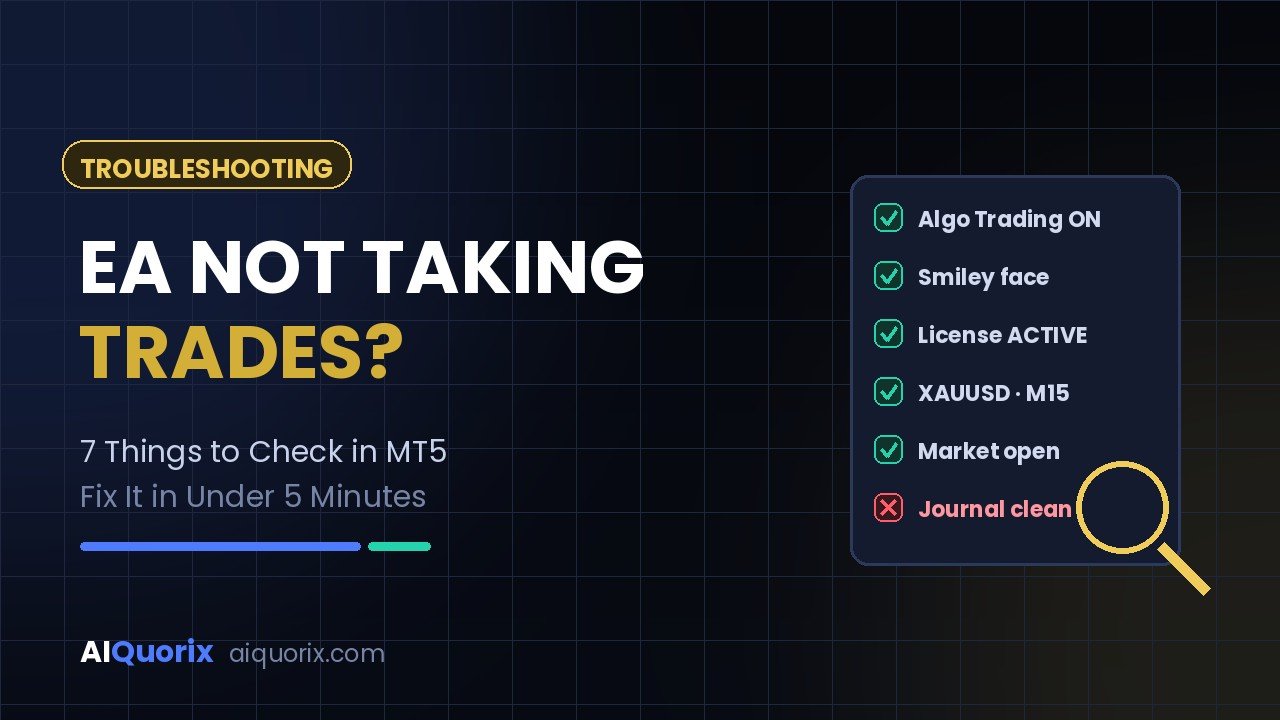
Run through the quick version: Algo Trading green, smiley face, license ACTIVE, XAUUSD M15, market open, Journal clean. If all six pass and there's simply no setup today, everything is fine — let it work.
If something still looks wrong, take two screenshots — your chart with the EA attached, and the Experts tab of the Terminal panel — and send them to our support on WhatsApp. Those two images let us spot the issue in minutes, and we'll get you running the same day.
One last tip: if your EA keeps going offline because your computer sleeps or the power cuts out, the real fix isn't any of the above — it's a VPS. We wrote a full guide on setting one up in half an hour.
Trading involves substantial risk. Only trade with capital you can afford to lose. Past performance does not guarantee future results.